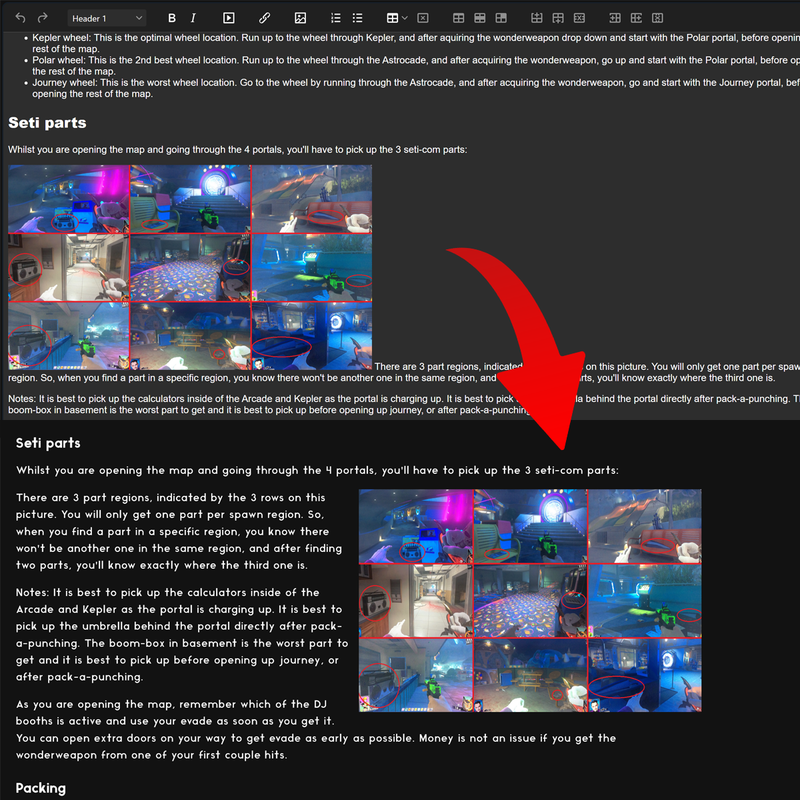
Custom Image Tutorial
The goal of this tutorial is to show you how to get custom images on to a page on The Rift. This page will show:
- How to convert an image to a link
- How to add an image to a page
- How to customize size and position of an image
Image Hosting
Go to postimages.org and click choose image
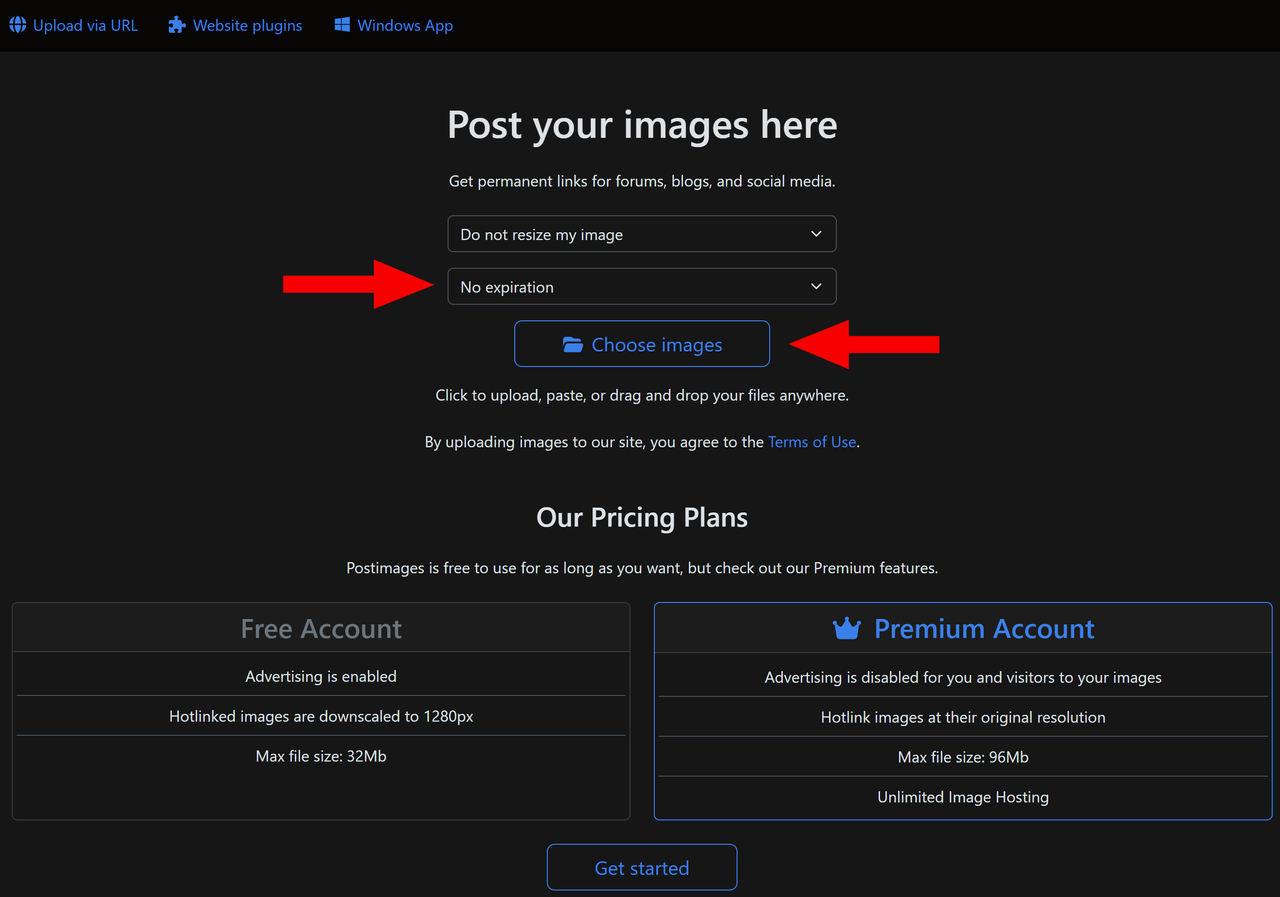
Once image is uploaded you will be taken to the image page.
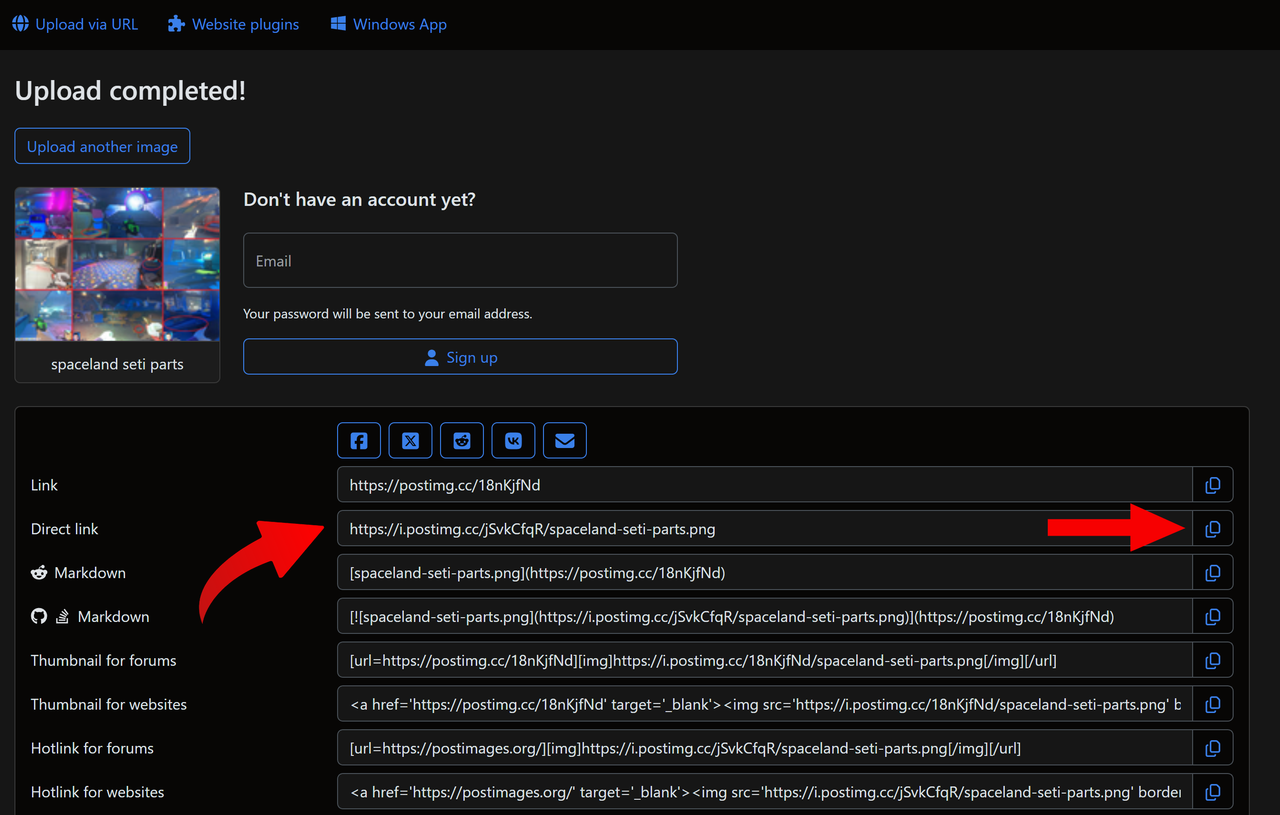
Note: make sure there is no expiration date on the image
Copy the link labeled "Direct Link". Now you have the link to the image.
Image Placement and Size
Adding an image to a page
Go to the page you want to add the image to, either inital submission or an edit request, and click the image icon in the toolbar. 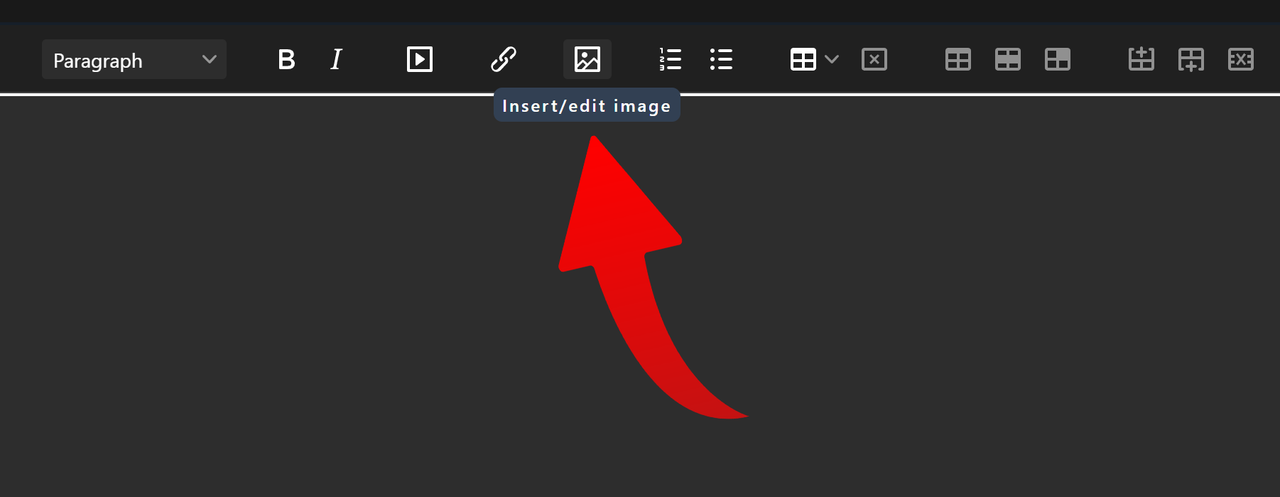
Paste the link you copied from postimages.org into the "Source" field.
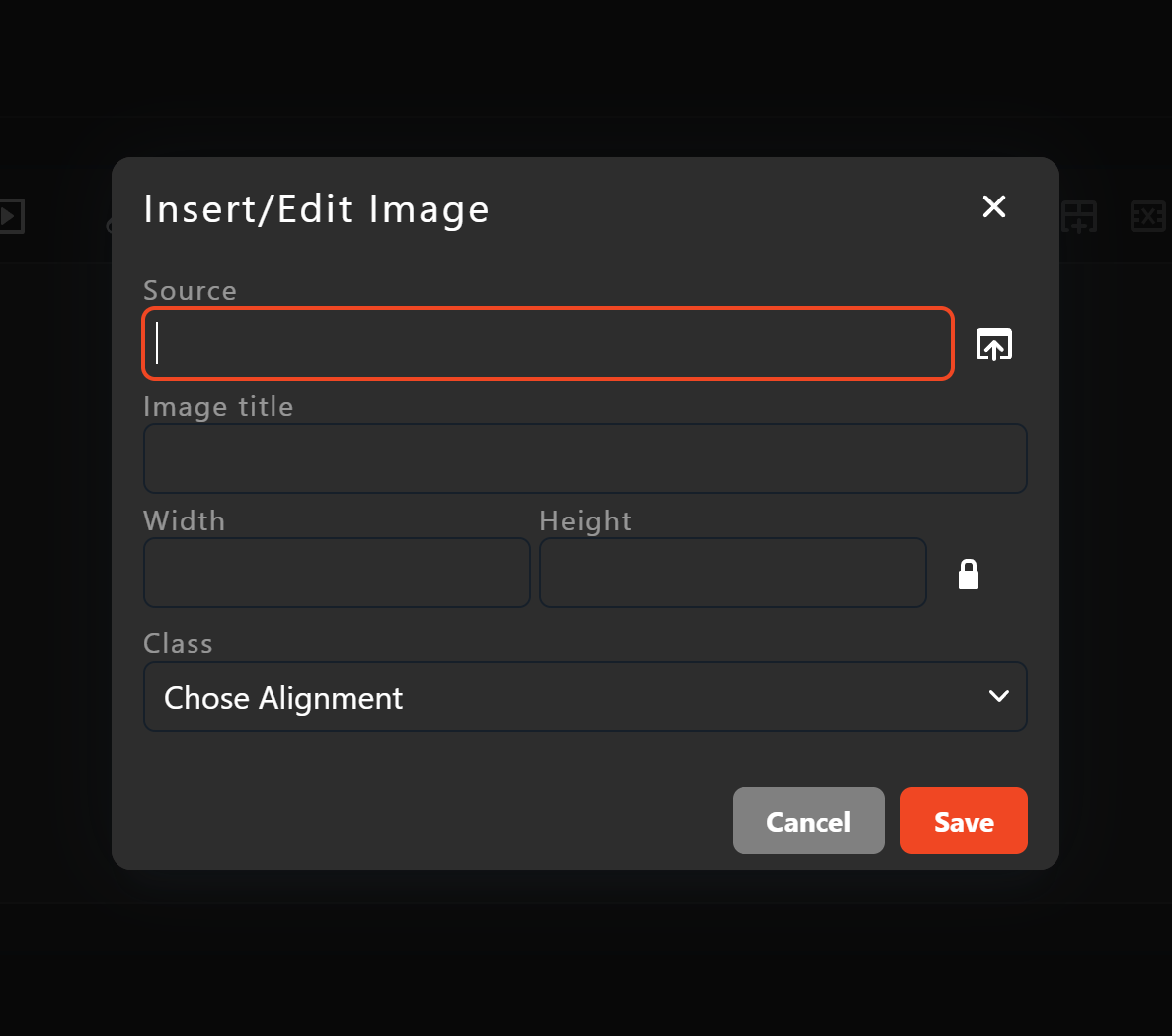
Click "Save" and the image will be added to the page.
Customizing size and position
To customize the size and position of an image, first click the image in editor, and then click the image icon in the toolbar. From here you can change the size of the image and the page alignment.
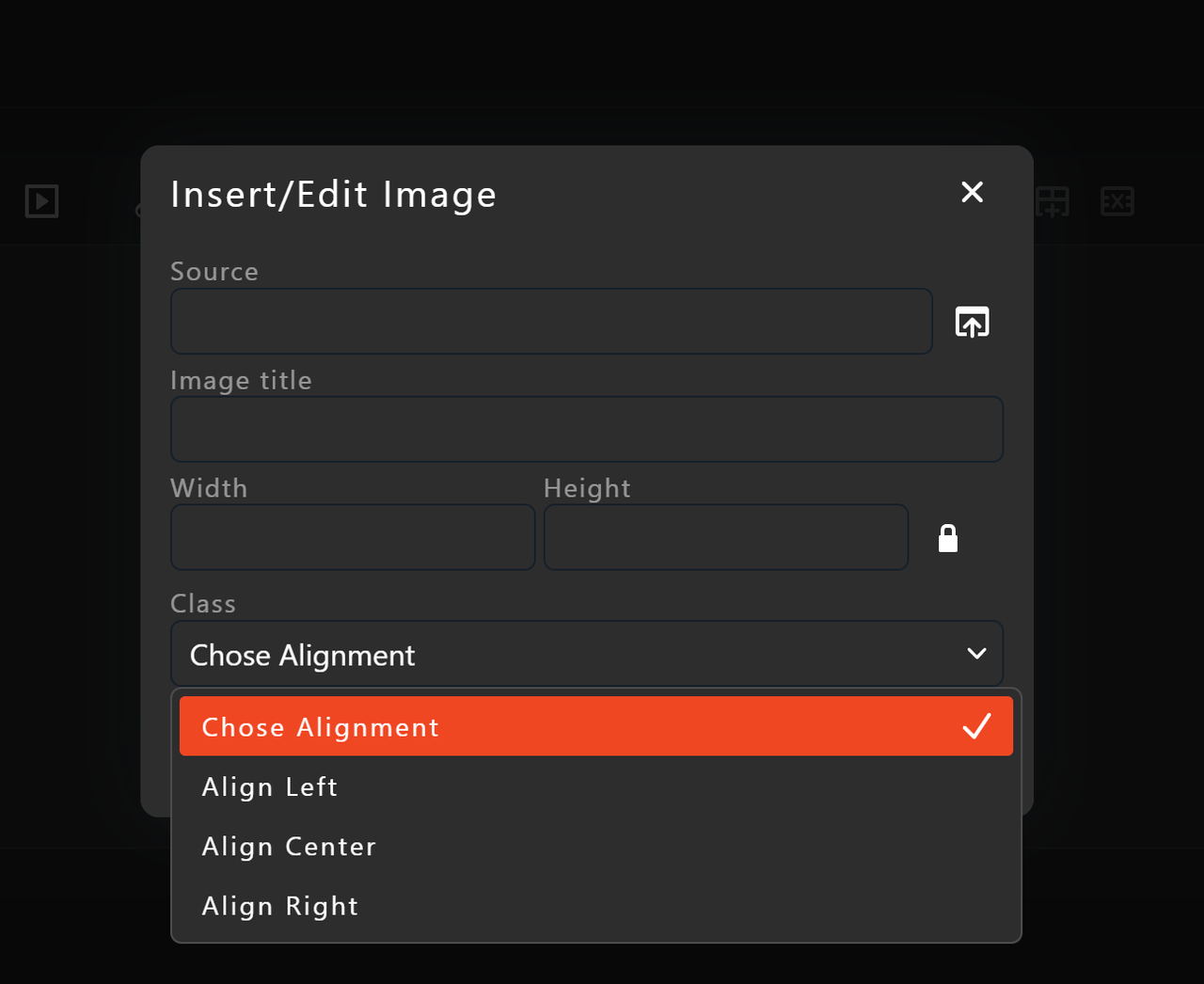
Note: you can also change the size of the image by clicking the image in the editor and dragging the corners of the image to the desired size
One thing to keep in mind is that the image will not be aligned correctly in the editor, you must click the "Preview" button to see the image in the correct position.